FVA Virtual Gearbox
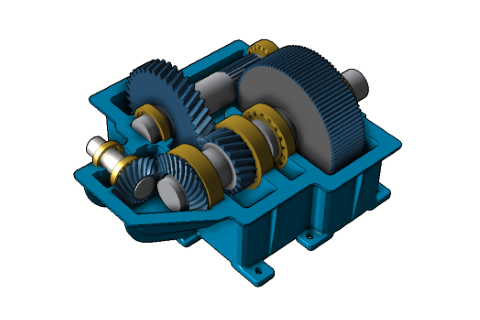
The FVA Virtual Gearbox was conceived as a fictional example to demonstrate the gear calculation capabilities of various FVA programs.
Historical FVA report (1988) published in Antriebstechnik Nr. 7 (in German)
Modeling the drive stage
Create a new model and add a bevel gear stage
 (Project → New).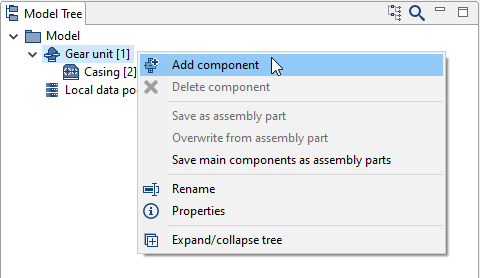
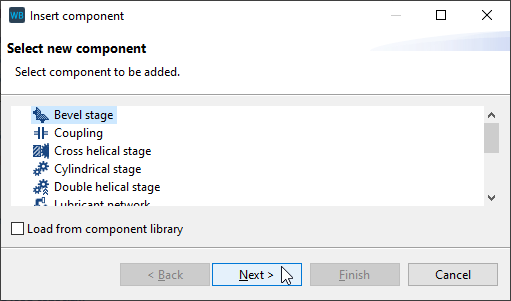
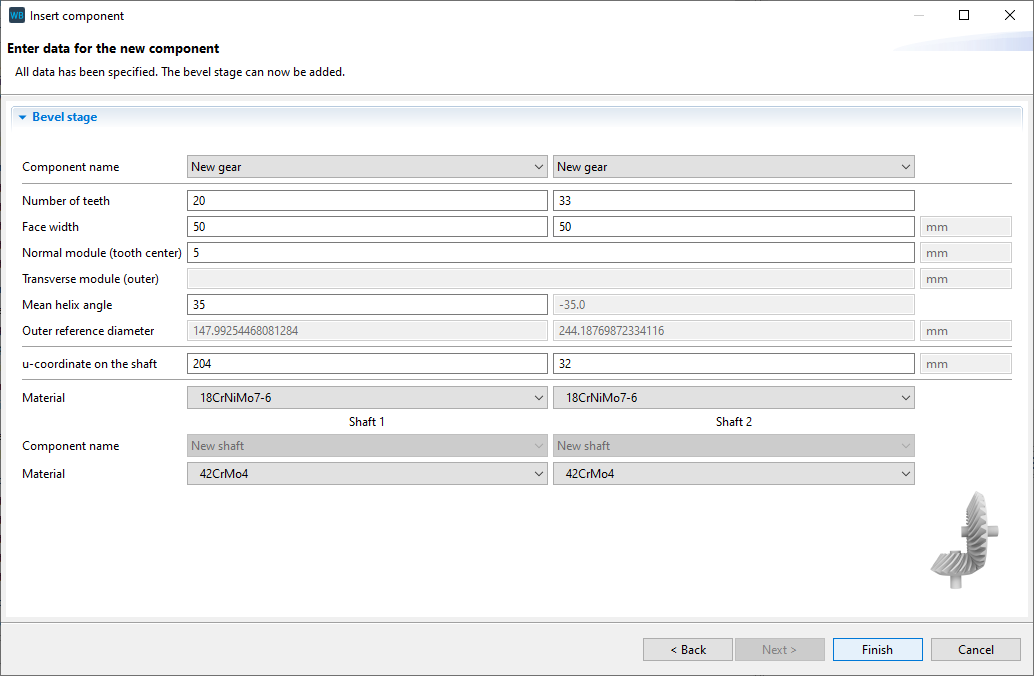
Enter the gear data
Specify the data for the gear and material as shown in the image below. New shafts will automatically be created for the bevel pinion and bevel gear.
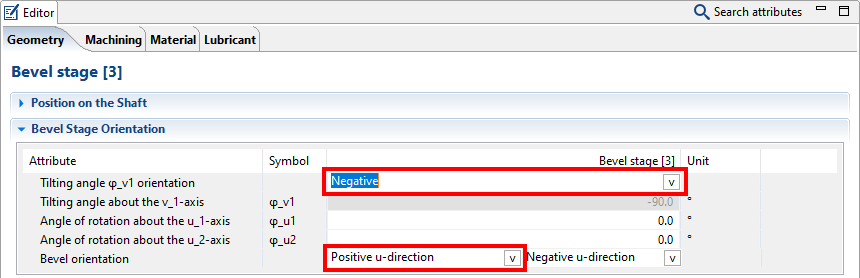
Change the orientation of the bevel gear stage
Select the bevel gear stage in the Model Tree and go to the "geometry" tab in the Editor. Enter the tilting angle orientation and the bevel orientation as shown.
Import the Standard.KGD file
The geometry data for the bevel gear will automatically be completed after the import. Standard.KGD is an input interface for the calculation of bevel gears which includes all necessary information for the manufacturing simulation and for generating the nominal geometry.
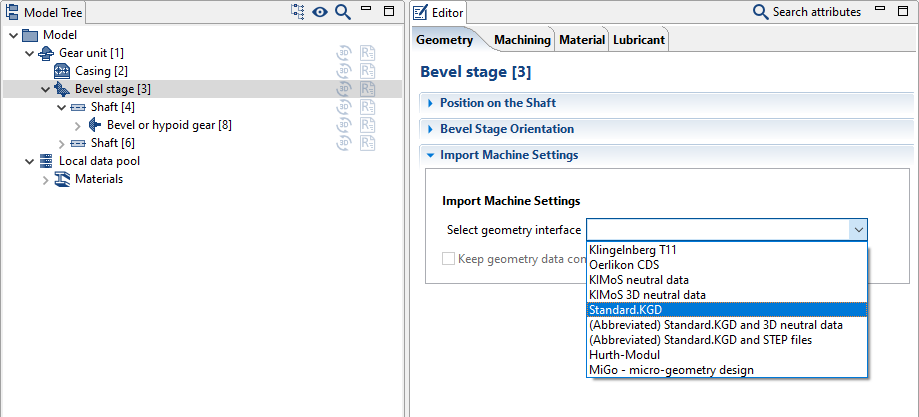
Download the Standard.KGD file and select the corresponding entry for the machine settings in the drop-down menu. Now, specify the path to the Standard.KGD file.
Rename the components
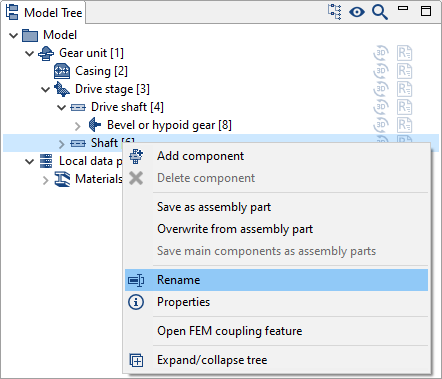
It is helpful to assign unique names to the components in the Model Tree, especially for complex models. Right-click on the component in the Model Tree and choose rename (or use F2):
Bevel gear stage [3] → Drive stage [3]
Shaft [4] → Drive shaft [4]
Shaft [6] → Intermediate shaft 1 [6]
Specify the contours of the drive shaft
Select the drive shaft in the Model Tree and switch to the "shaft contour" tab in the Editor. The inner and outer contours as well as the axial starting coordinate of the shaft can be specified here. Click
 in the "outer contour input from left" area to add two shaft sections. Enter the length and diameters of the sections as shown below.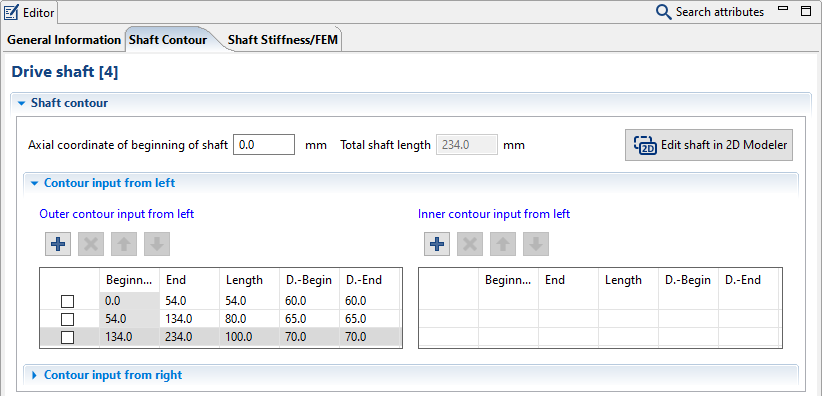
Notice
The starting value of the shaft contour is determined from the geometry and cannot be specified.
Specify the contours of the intermediate shaft
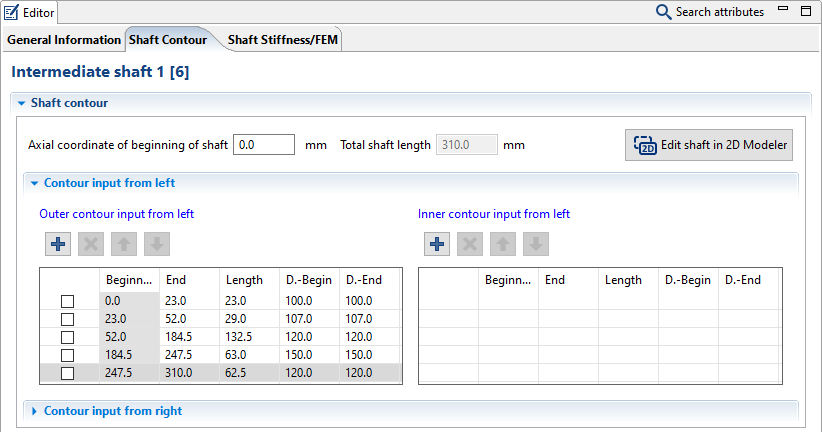
Repeat the process for the intermediate shaft.
Notice
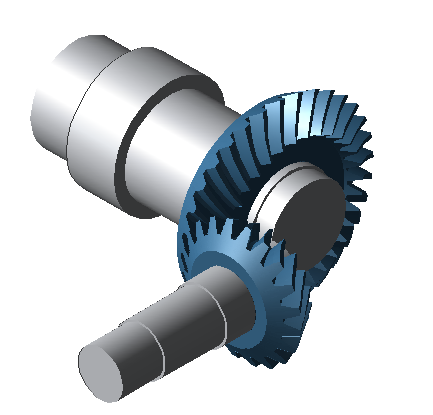
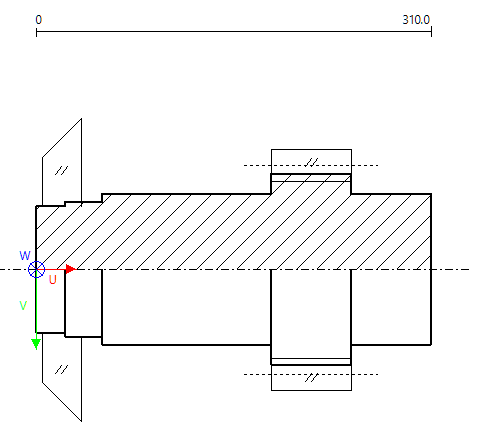
Use the Schematic Sketch view  and cutting planes in the 3D Model view
  to verify your entries while modeling the shaft.
Modeling the intermediate stage
Add a cylindrical gear
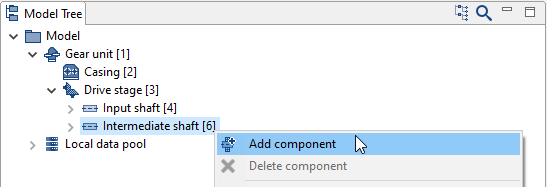
Right-click on intermediate shaft 1 [6] in the Model Tree and add a new cylindrical stage component.
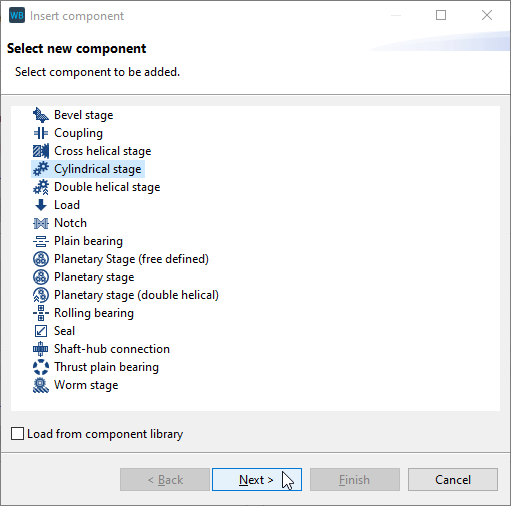
Specify the gear data
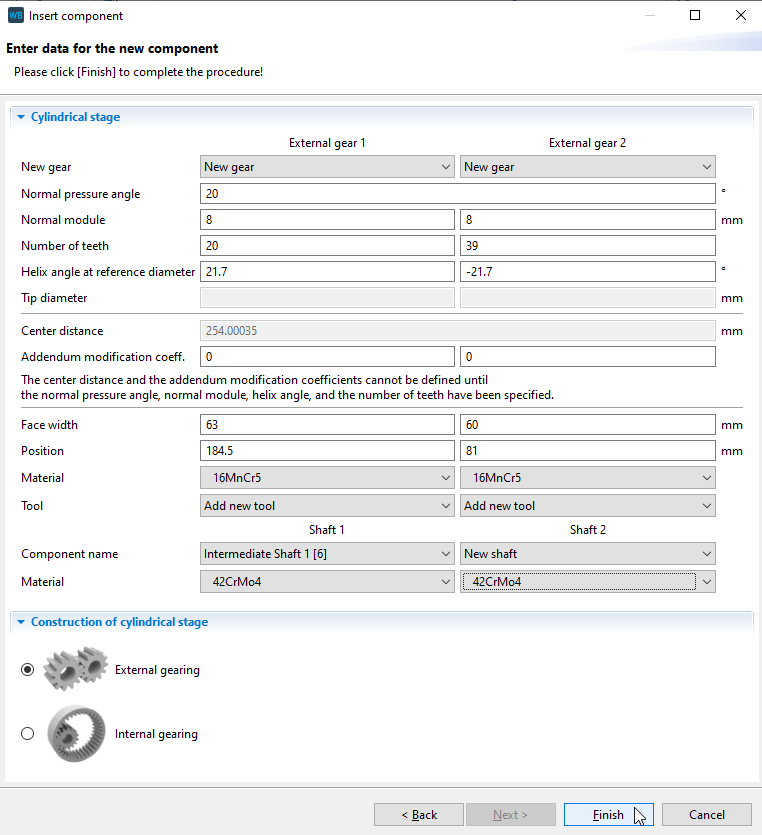
Enter the gear data in the stage wizard as shown in the image below. The first cylindrical gear will now be added to intermediate shaft 1 [6]. The second cylindrical gear of the stage will be added to the model along with a new shaft.
Rename the components
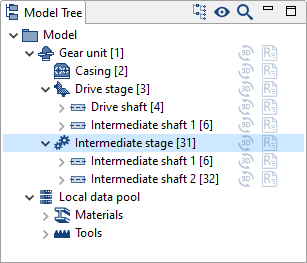
The intermediate stage, consisting of intermediate shaft 1, intermediate shaft 2, and two helical gears will be added. Rename the new components to:
Cylindrical stage [31] → Intermediate stage [31]
Shaft [32] → Intermediate shaft 2 [32]
Model the contours of Intermediate Shaft 2
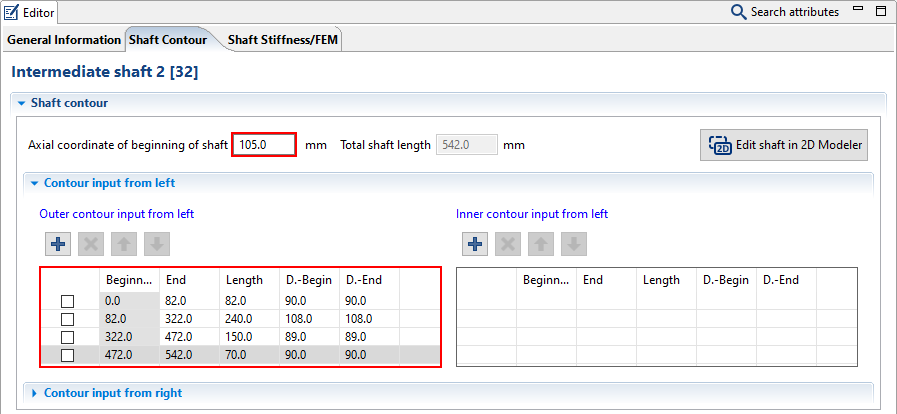
Select Intermediate shaft 2 in the Model Tree and add 3 new shaft sections in the "outer contour input from left" field of the shaft contour editor. Enter the length and diameter for each section and modify the starting coordinate of the shaft as shown.
Modeling the output stage
Add a cylindrical stage
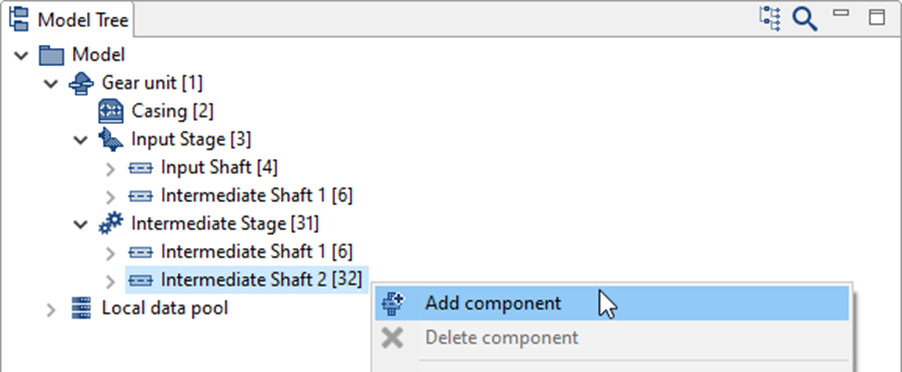
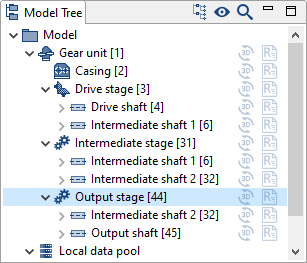
The output stage should now be added to intermediate shaft 2, which already exists. To do so, right-click on intermediate shaft 2 in the Model Tree and add a new cylindrical stage component.
Specify the gear data
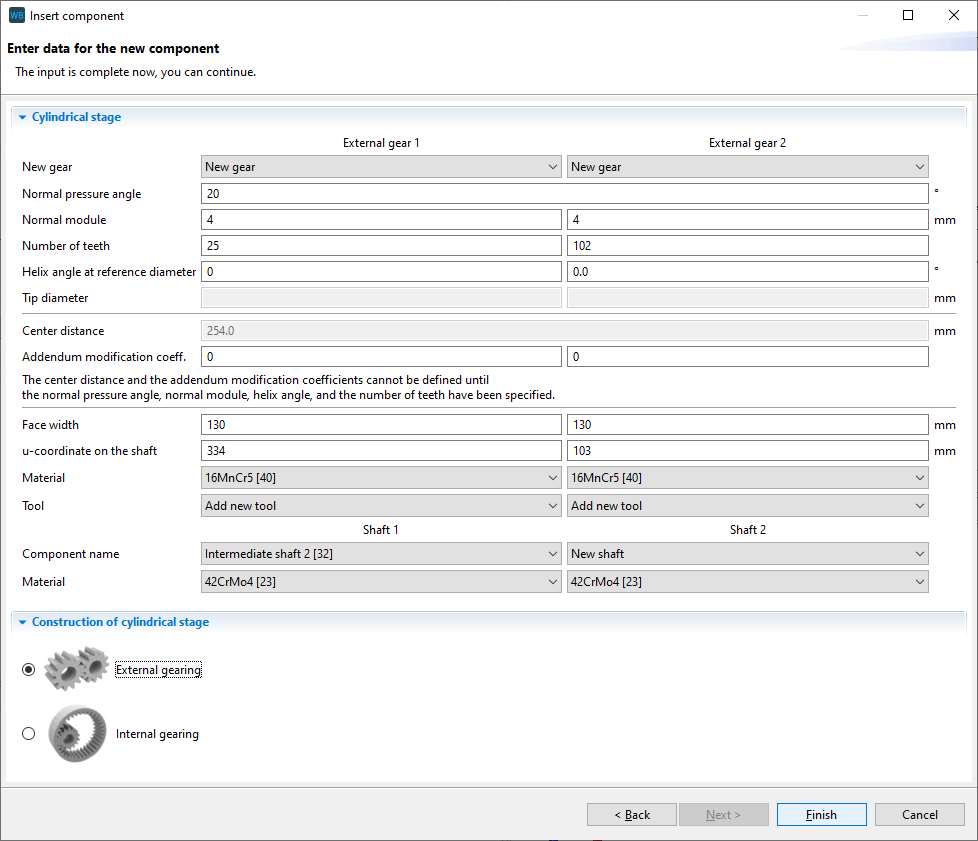
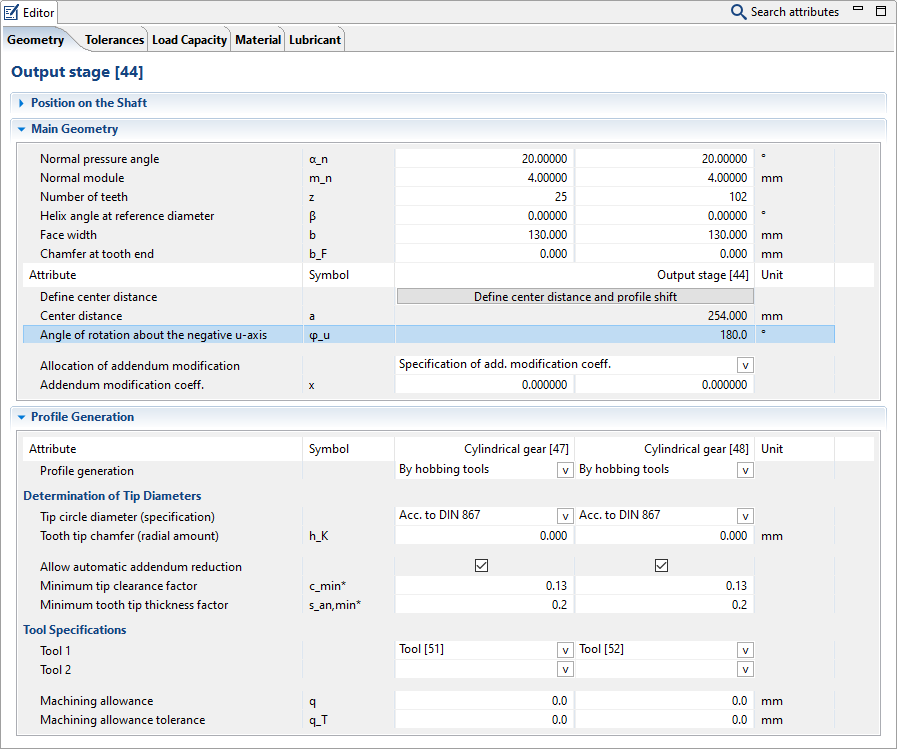
Enter the gear data in the cylindrical stage wizard as shown in the image below. The first gear will be added to intermediate shaft 2. The second gear of the stage will be added to the model along with a new shaft. Rename the new components (output stage and output shaft).
Change the angle of rotation about the negative u-axis
Select the output stage in the Model Tree and modify the angle of rotation about the negative u-axis to 180° under the geometry tab in the Editor.
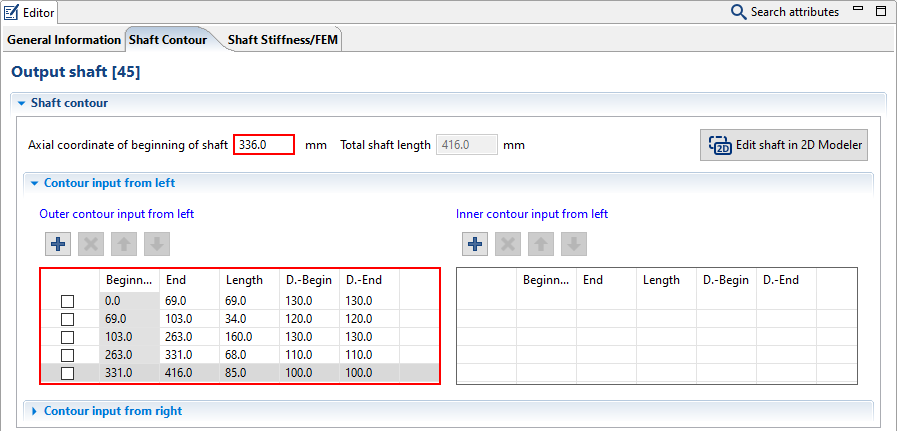
Specify the contours of the Output Shaft
Add 4 new shaft sections in the "outer contour input from left" field of the shaft contour editor. Enter the length and diameter for each section and modify the starting coordinate of the shaft as shown below.
Adding the bearings
Add bearings
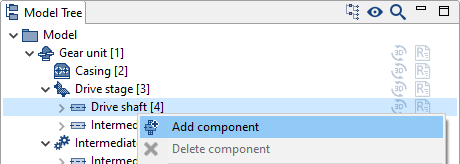
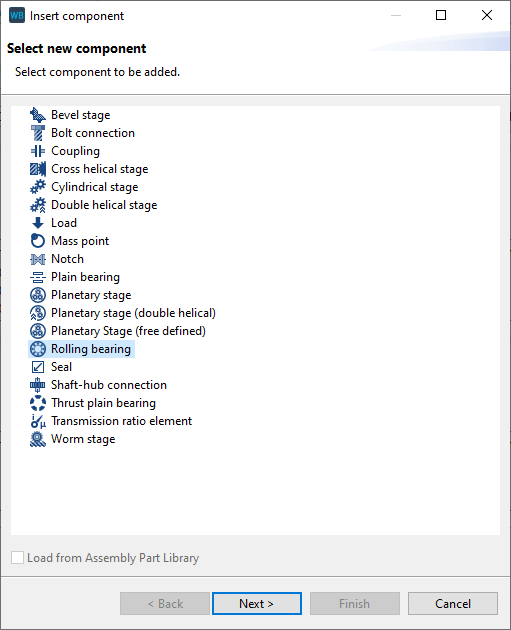
Add a rolling bearing on the drive shaft. To do so, right-click on the drive shaft in the Model Tree, add a component, and select rolling bearing.
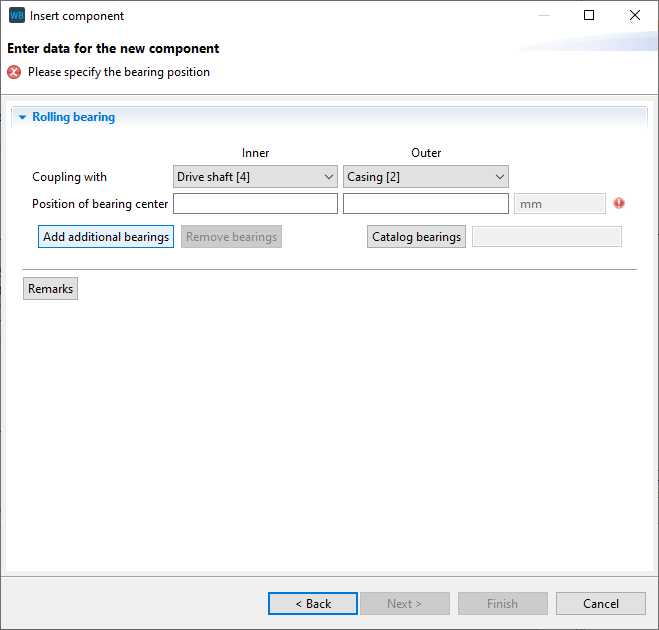
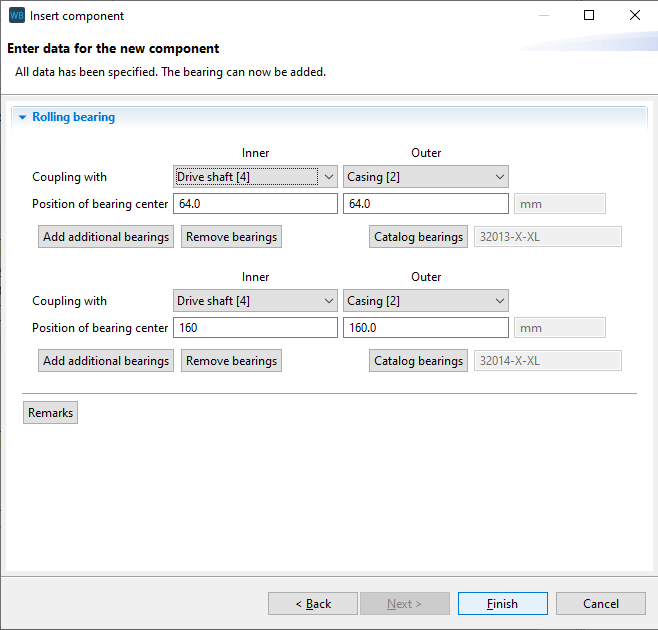
Specify the bearing position
Click add additional bearings to simultaneously add two rolling bearings on the shaft. Enter the positions of the inner rings as shown below. The position of the outer rings will be calculated automatically. Now, click catalog bearings to choose a bearing from the catalog.
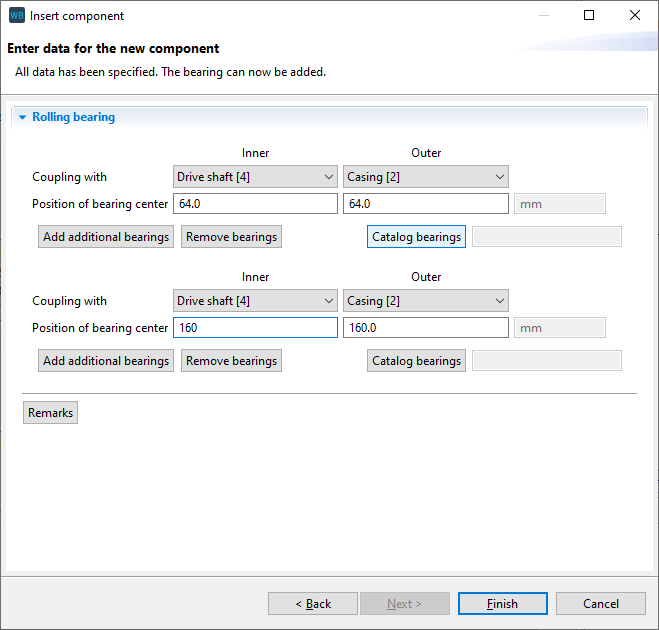
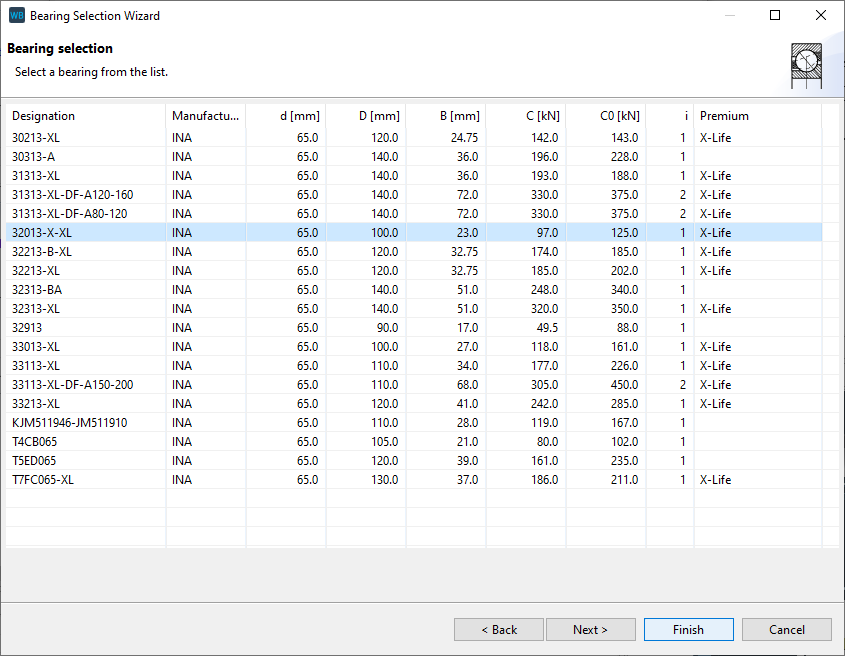
Bearing 1: Select a bearing from the catalog
In the bearing selection assistant, choose tapered roller bearings as the bearing type and INA/FAG as the manufacturer. Select INA 32013-X-XL. Click next to show the bearing details or finish to select the bearing.
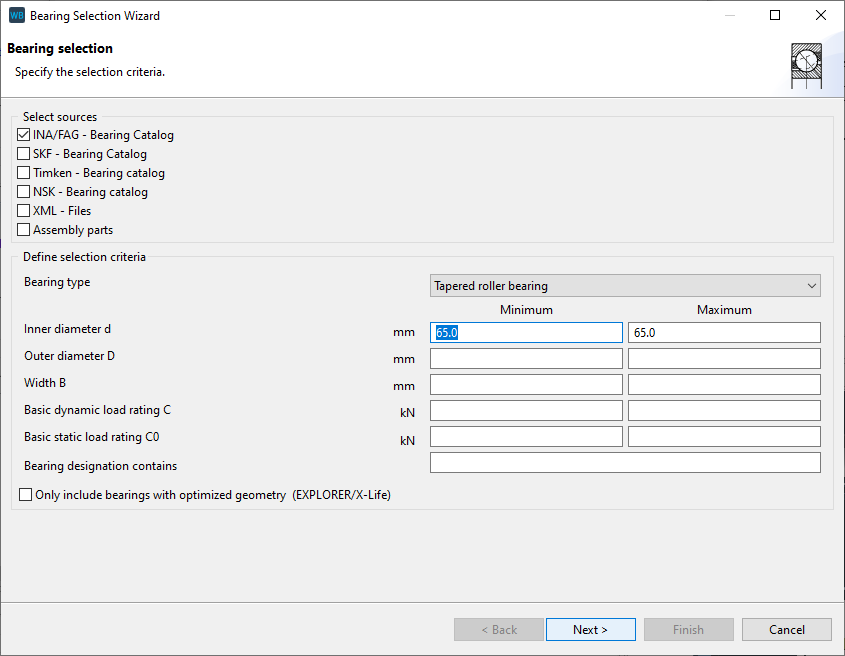
Bearing 2: Select a bearing from the catalog
Select the catalog entry INA 32014-X-XL for the second bearing. Click "Finish"
Specify the bearing arrangement
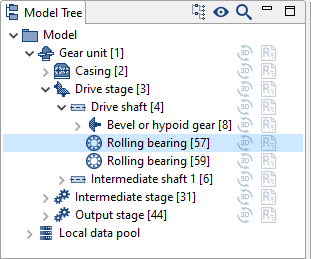
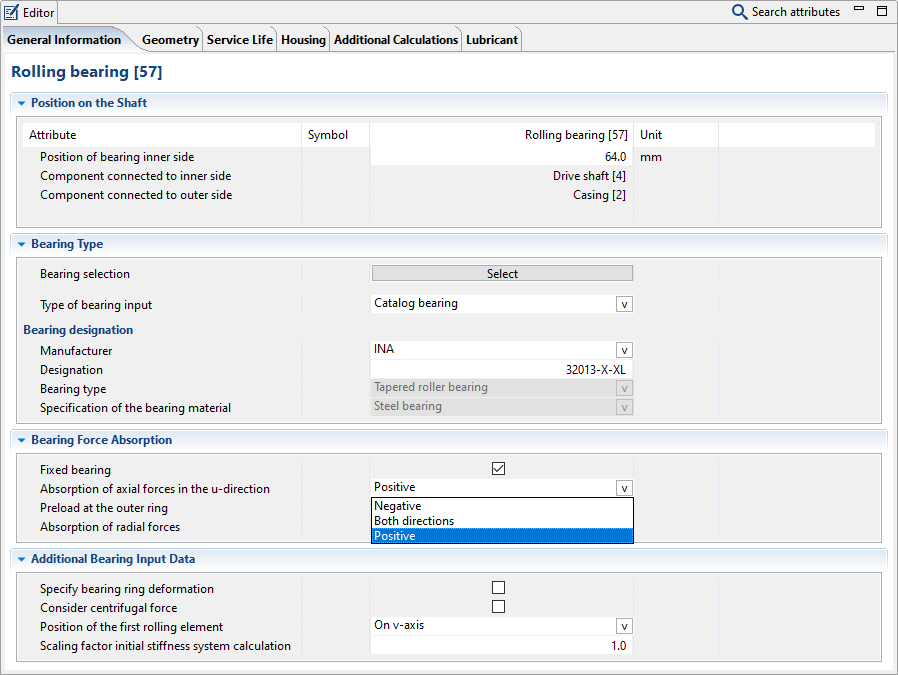
Choose an O arrangement for both bearings. Select the first bearing under the drive shaft in the Model Tree and set the "absorption of axial forces in the u-direction" in the Editor to positive. Set the second bearing to negative accordingly.
Add additional bearings to the model
Add additional bearings on the other shafts, as with the INA 32013-X-XL tapered roller bearings, according to the following table:
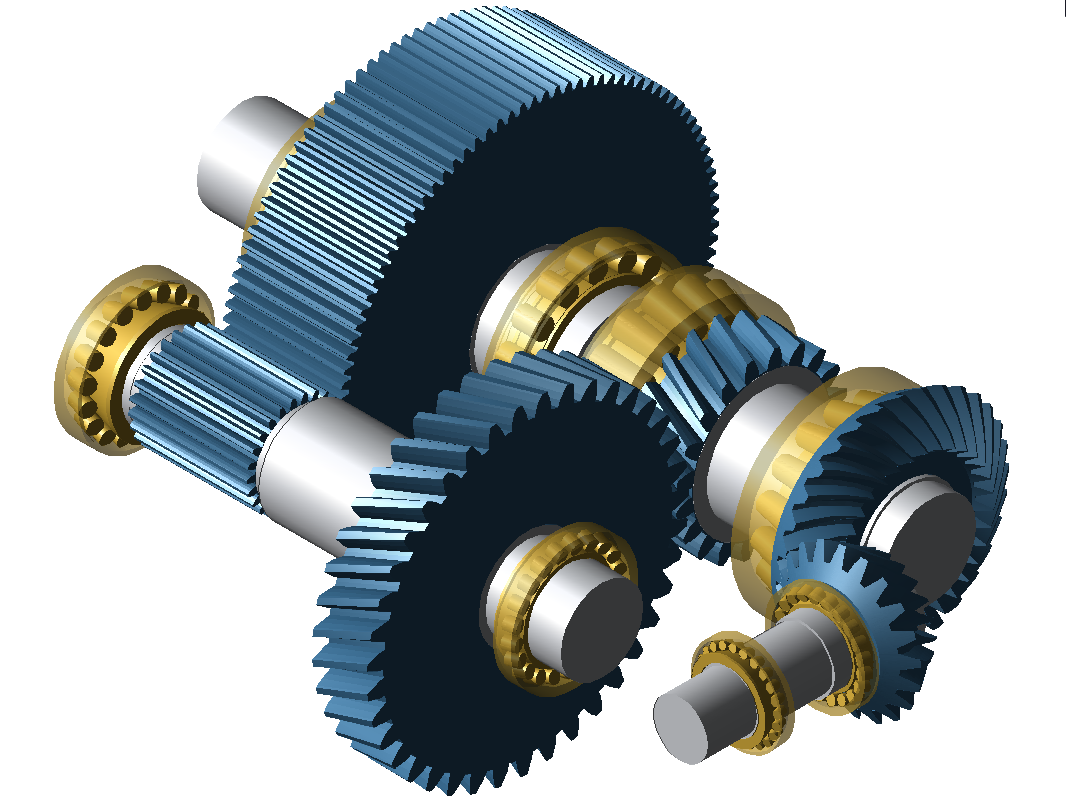 Table 122. Overview of all bearings in the model
Bearing name
Position of bearing center [mm]
Direction
Arrangement
Drive shaft
INA 32013-X-XL tapered roller bearing
64
Positive
O
INA 32014-X-XL tapered roller bearing
160
Negative
Intermediate shaft 1
SKF 32224 tapered roller bearing
80
Positive
O
SKF 32224 tapered roller bearing
280
Negative
Intermediate shaft 2
INA 32018-X-XL tapered roller bearing
46
Negative
X
INA 33118-XL tapered roller bearing
502
Positive
Output shaft
SKF NU 1026ML cylindrical roller bearing
40
-
-
SKF NU 2222 ECP cylindrical roller bearing
291
-
Loads
Loads are added to a shaft as a component, either by right-clicking on the shaft or in the Power Flow Editor.
Select the gear unit in the Model Tree and switch to the power flow tab in the Editor. Click  to add load components on the drive and output shafts. Enter the power flow data according to the table below.
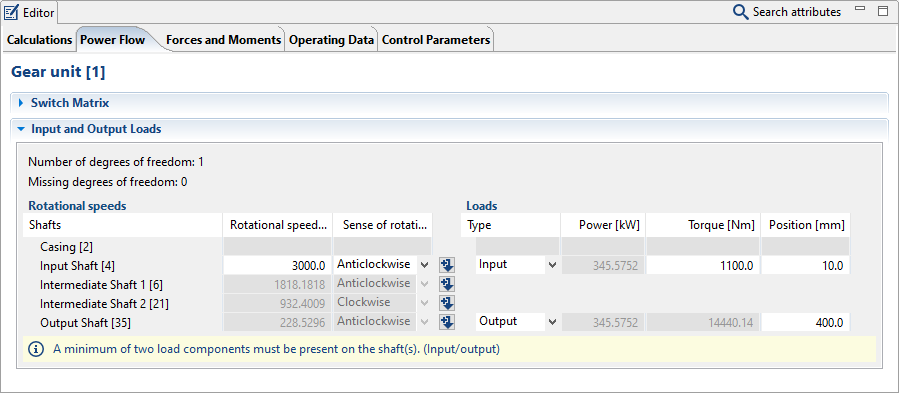
Drive shaft | Output shaft | |
|---|---|---|
Type of torque introduction | Input | Output |
Torque | 1100 Nm | will be calculated |
Direction of rotation | Anticlockwise | will be calculated |
Speed | 3000 1/min | will be calculated |
Notice
For a correct power flow, at least two load components must be present on the shafts (drive/output).
For a load component, at least the:
Direction of rotation
Speed
Power or torque
must be specified.
The type of torque introduction must be specified for both loads.
Operating data
Finally, operating data must be specified for at least the lubricant and oil temperature in order to be able to start the system calculation. Switch to the operating data tab in the Editor and select the lubricant "ISO-VG-320" from the Global Database. Enter a lubricant temperature of 80°C.
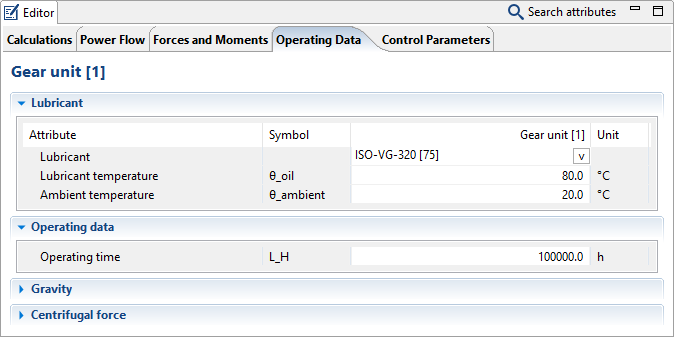
The lubricant and temperature can be specified under the "operating data" tab for the gear unit component in the Editor.
Calculation and results
Start a system calculation
Click run calculation to begin the system calculation. Additional calculations can be added in the Editor under the calculations tab.
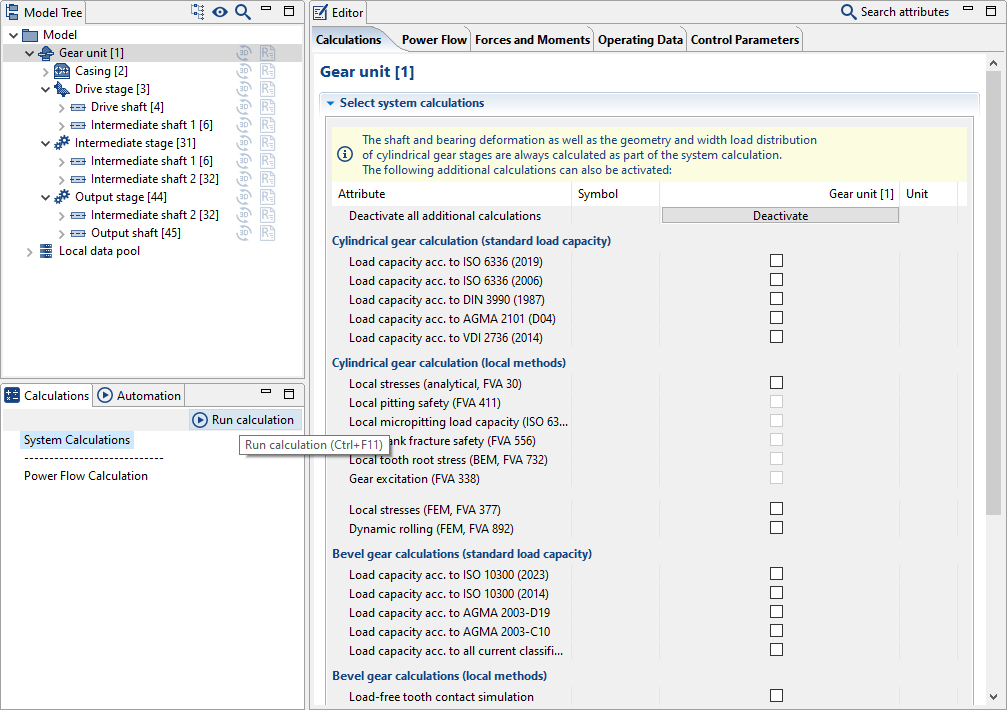
View the results report
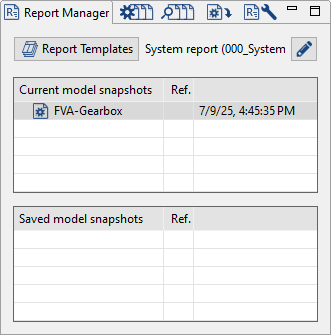
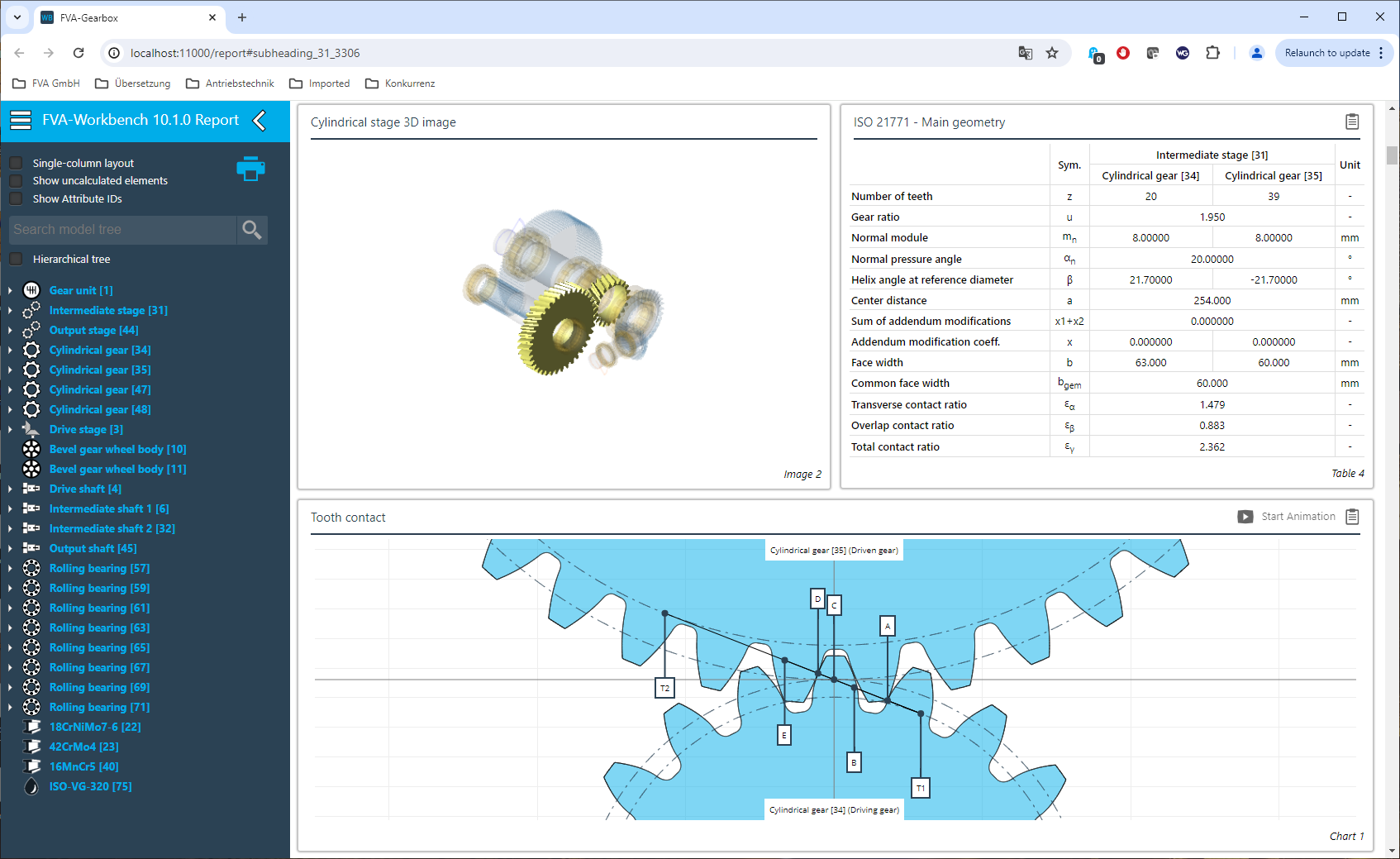
After the calculation is complete, a new model snapshot is created in the Report Manager. This includes all entries and calculation results as of the time of the calculation. Double-click on the model snapshot to generate a report.