Licensing
Important
A new licensing process is being introduced with the release of FVA-Workbench 11.0. Existing licenses must be reissued in order to use version 11.0.
To get your new license, please send an e-mail to lizenz@fva-service.de.
Licensing Types
New licensing options are available from FVA-Workbench 11.0. The setup and access processes differ depending on the type of license.
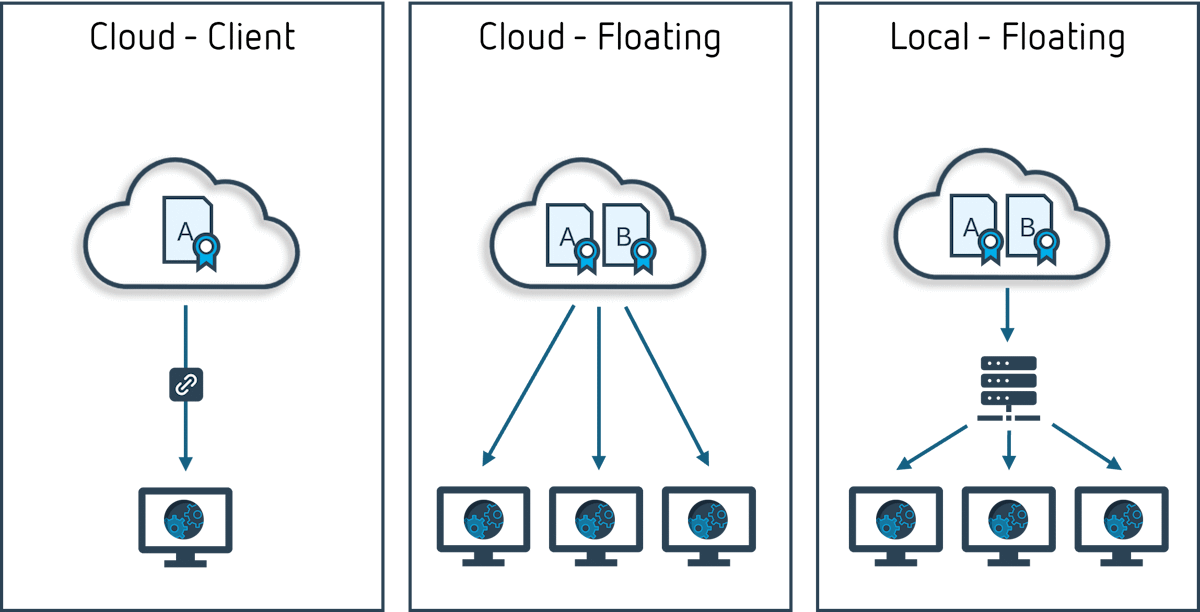
Cloud Client Licenses
Cloud client licenses are computer-based. With this type of license, the FVA-Workbench can only be used on the computer with which the license is linked. An internet connection is required to use this type of license.
Cloud Floating Licenses
These licenses allow multiple users to access a shared pool of licenses. Each individual license can only be used by one user at a time. An internet connection is required to use this type of license.
Local Floating Licenses
With this type of license, license management software is installed on a server. This server must be accessible for all computers running the FVA-Workbench. The server checks the validity of the licenses and distributes them to the network. The client computers do not require an internet connection.
Sentinel License Manager
The Sentinel License Manager is a program developed by Thales that is required to use the new licenses. It is installed by default as part of the FVA-Workbench setup, but is also available for download at the FVA Download Center. Administrator rights are required for the installation.
After the installation, the Sentinel License Manager starts a service which retrieves and manages the available licenses.
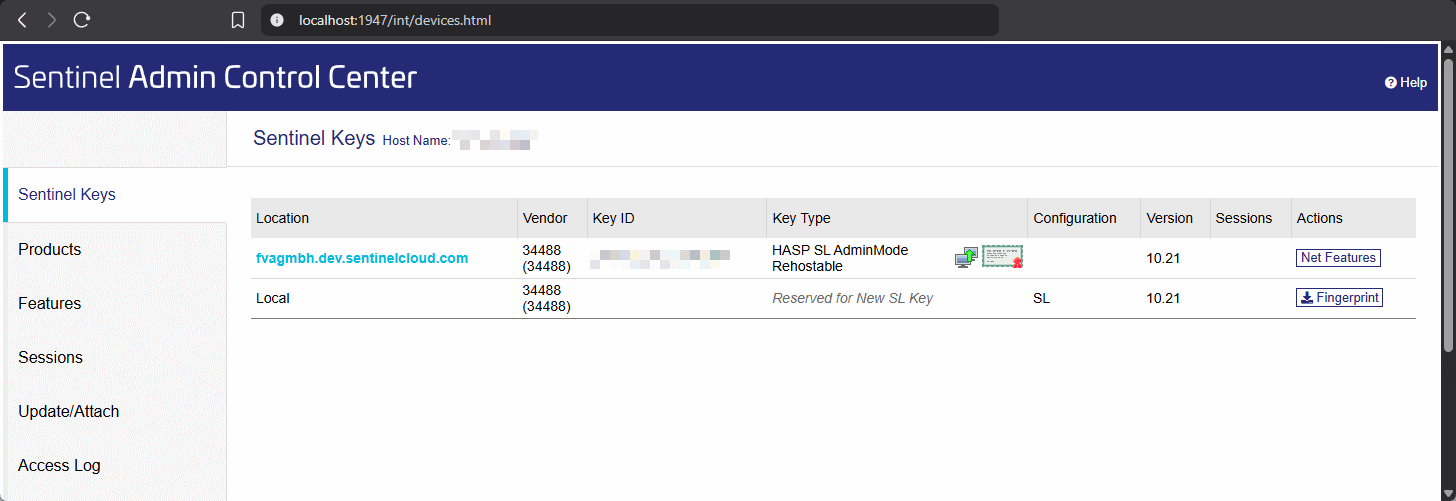
The license manager can be configured via the Admin Control Center web interface. This can be accessed at: http://localhost:1947.
Location of license files (relevant for local floating licenses only)
The license certificates uploaded in the Admin Control Center are stored in the installation directory of the Sentinel License Manager:
C:/Program Files (x86)/Common Files/SafeNet Sentinel/Sentinel LDK/installed/
Remove the files to remove the licenses from the Admin Control Center.
Ports
The license manager uses TCP port 443 (HTTPS) for outgoing connections. In most cases, no additional firewall configuration is required. For internal communication, FVA-Workbench accesses the license manager via localhost:1947. This port is used exclusively for local communication.
Cloud Client Licenses
Important
The Sentinel License Manager must be installed on the computer to use cloud client licenses.
Linking the license to the computer
When a license is issued, an e-mail is sent to the user which includes a link to associate the license with the computer. The computer on which this link is opened will be permanently linked with the license.
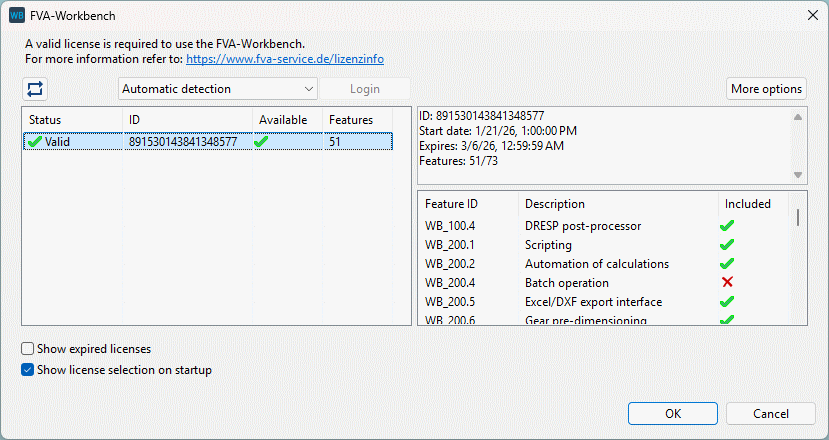
After it has been successfully linked, the license is displayed in the FVA-Workbench start dialog.
Cloud Floating Licenses
Important
The Sentinel License Manager must be installed on the computer to use cloud floating licenses.
Registration in the Sentinel EMS online license management system
Administrators can view available licenses and assign them to users in the Sentinel EMS online license management system.
Once a license has been issued, the administrator receives an e-mail instructing them to login to the Sentinel EMS online license management system.
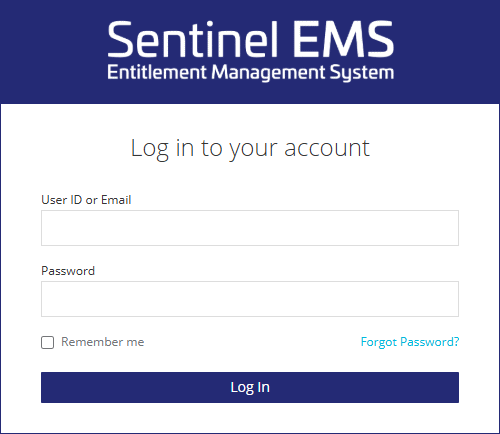
A user account has already been created for the administrator, but the password must first be set. To do so, click "Forgot password" in the login form and enter the address to which the e-mail was sent. A reset password e-mail will then be sent. A new password can be entered via the link included in the e-mail.
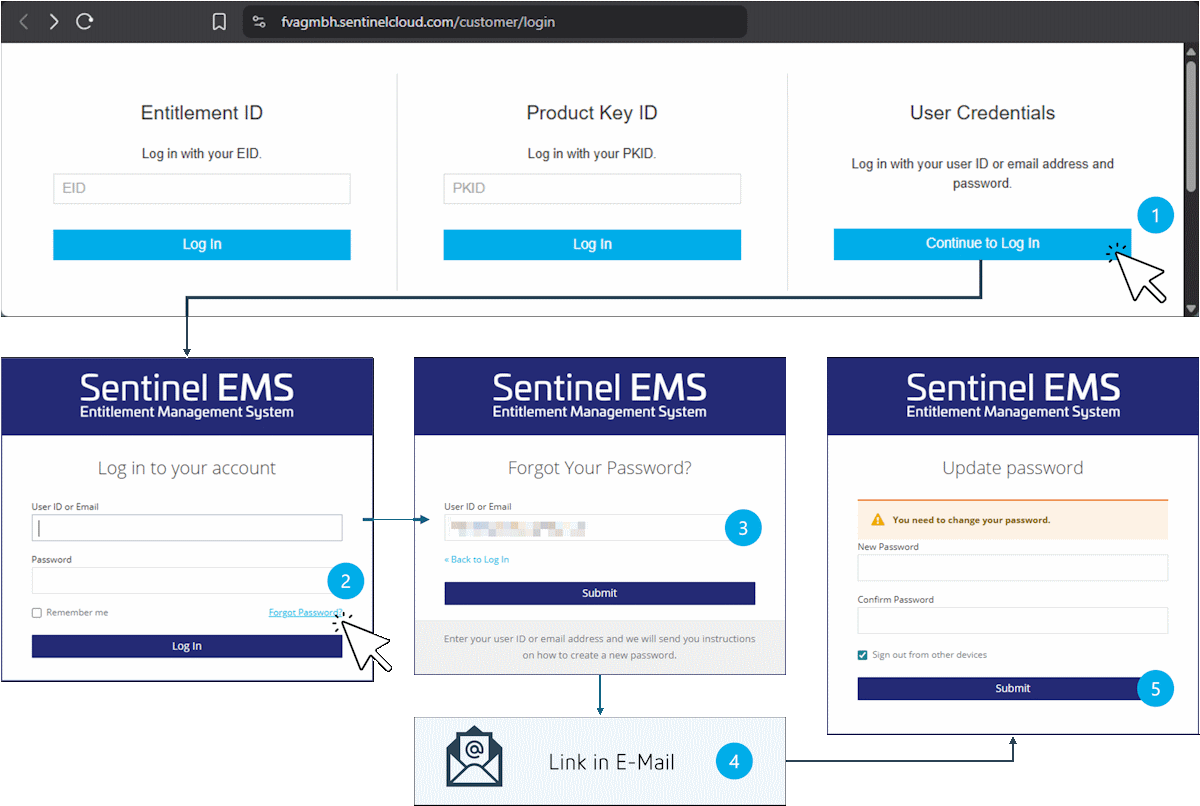
Initial registration in Sentinel EMS: Click "Forgot password" in the login form, open the password reset link in the e-mail, and assign a new password.
Creating users
In order to assign licenses to individual users, they must first be created in the EMS. A user ID, e-mail address, password, and name must be entered for each user.
The password can be set and then communicated to the user. If necessary, the user can login to the EMS with their e-mail address and password and change the password themselves. However, registration is not required to use the license.
If Standard is selected as the User Type, the user only has limited read access to the EMS settings.
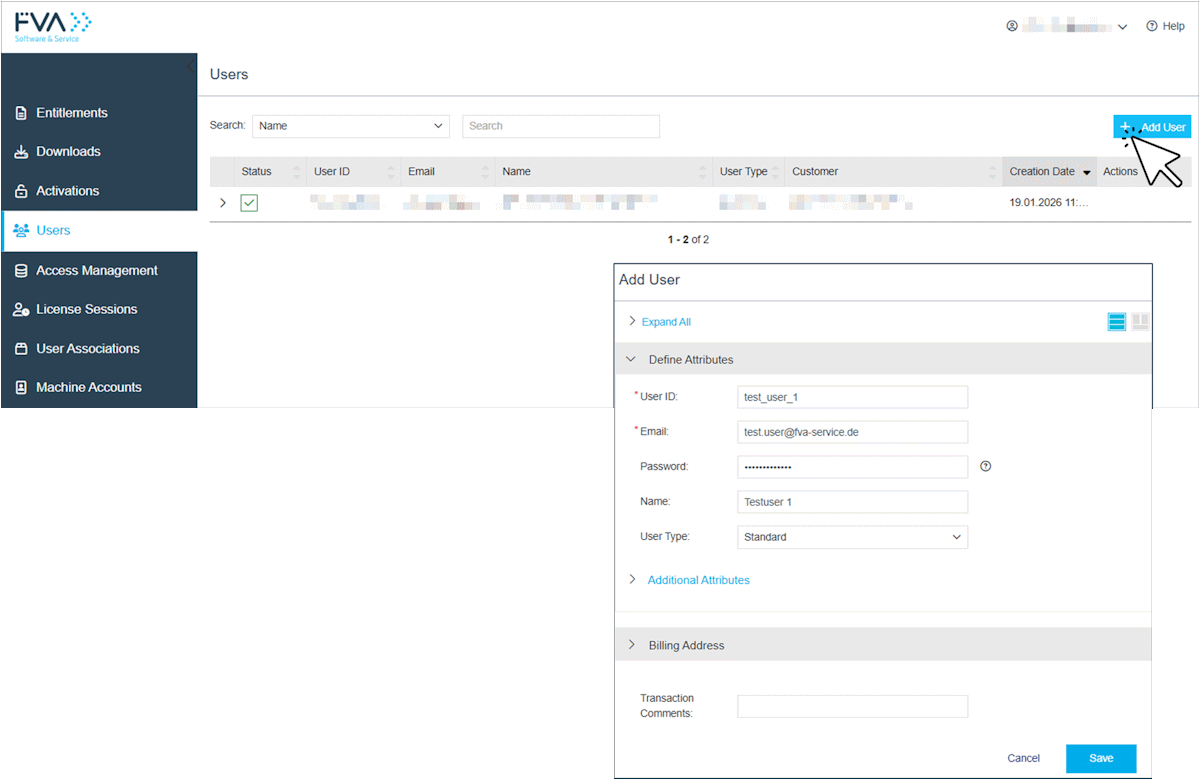
Assigning licenses to users
All available licenses with their ID and description are listed under the User Associations menu. Click the button (1) to open a dialog box for user assignments.
Select a license in the dialog by entering the license ID or description in the search field (2). The users to whom the selected license can be assigned are displayed in the lower area (3). Click on the user name to assign the license to that user.
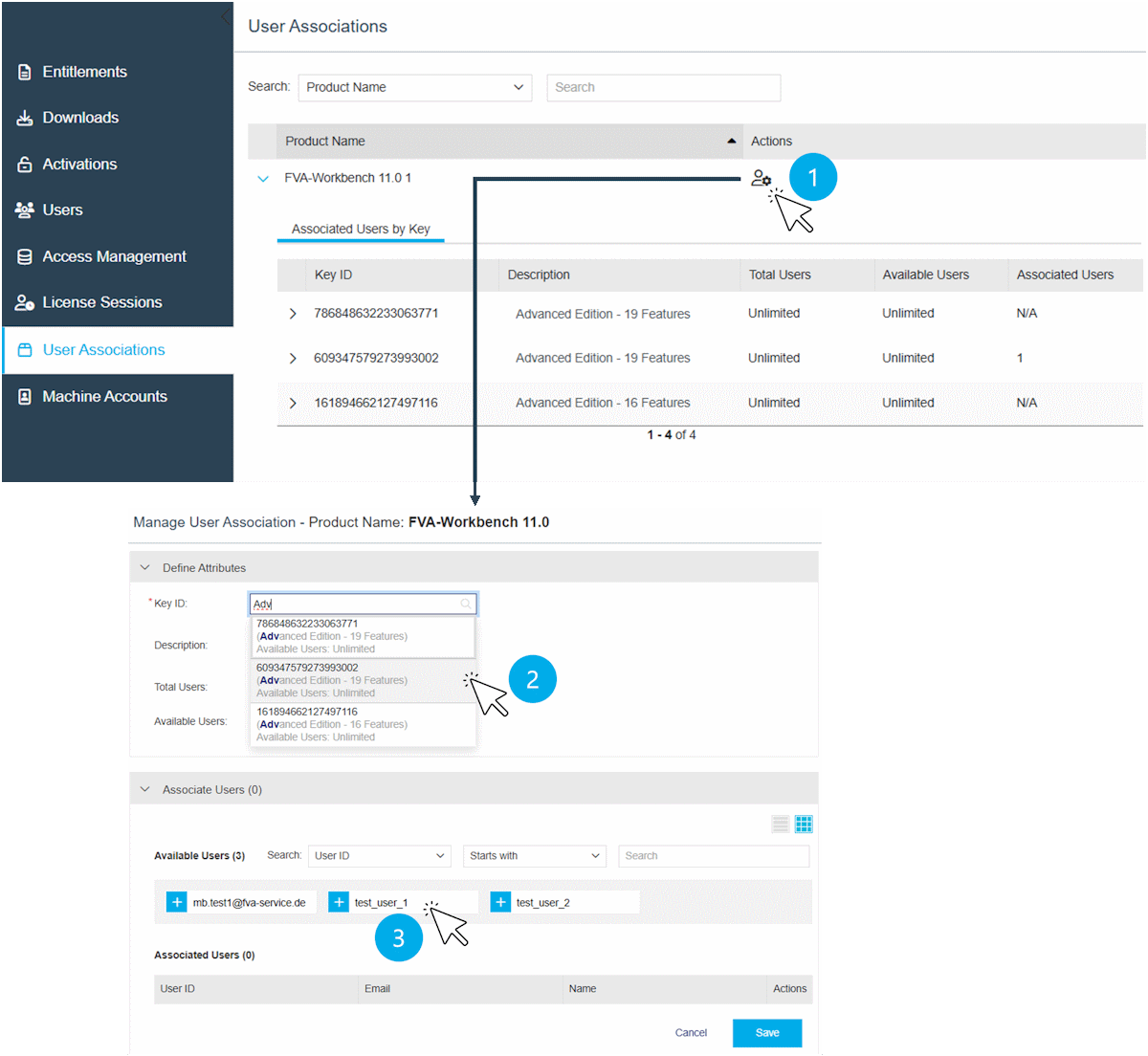
Note
The license search field (2) automatically suggests suitable licenses as soon as you enter something. However, if the license ID is entered directly, the suggestions do not appear and the license is not selected correctly. In this case, delete the last digit of the license ID. Suggestions will then be displayed again, from which you can select the appropriate license.
Using the license with the FVA-Workbench
A login dialog is displayed when starting the FVA-Workbench. "Login with user account" must be selected in the dropdown menu (1) to access cloud floating licenses.
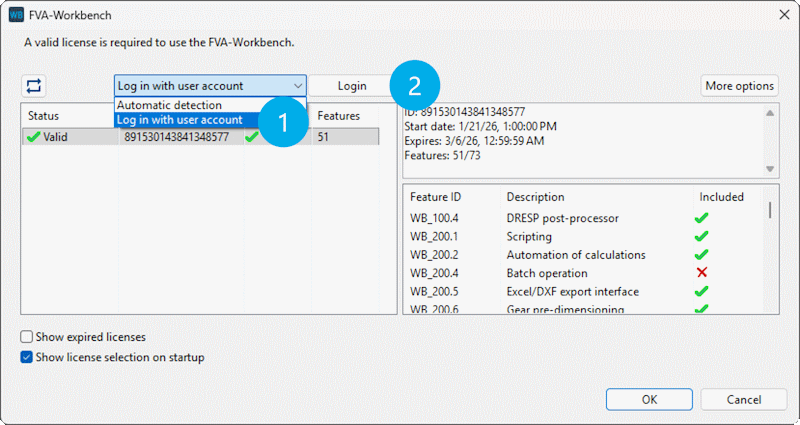
After clicking the Login button (2), a browser window opens. The user information must be entered here. After a successful login, the available licenses are displayed in the FVA-Workbench login dialog and can be selected here.
Terminating active license sessions
When working with floating licenses, license sessions may sometimes remain active unintentionally. An active session can be manually terminated via the EMS.
Notice
The FVA-Workbench checks every 3 minutes to see if the session is still active. If a session is terminated via the EMS, the application automatically attempts to reestablish the connection. Therefore, the license must be claimed immediately afterward by another instance of the FVA-Workbench to prevent the connection from being reestablished.
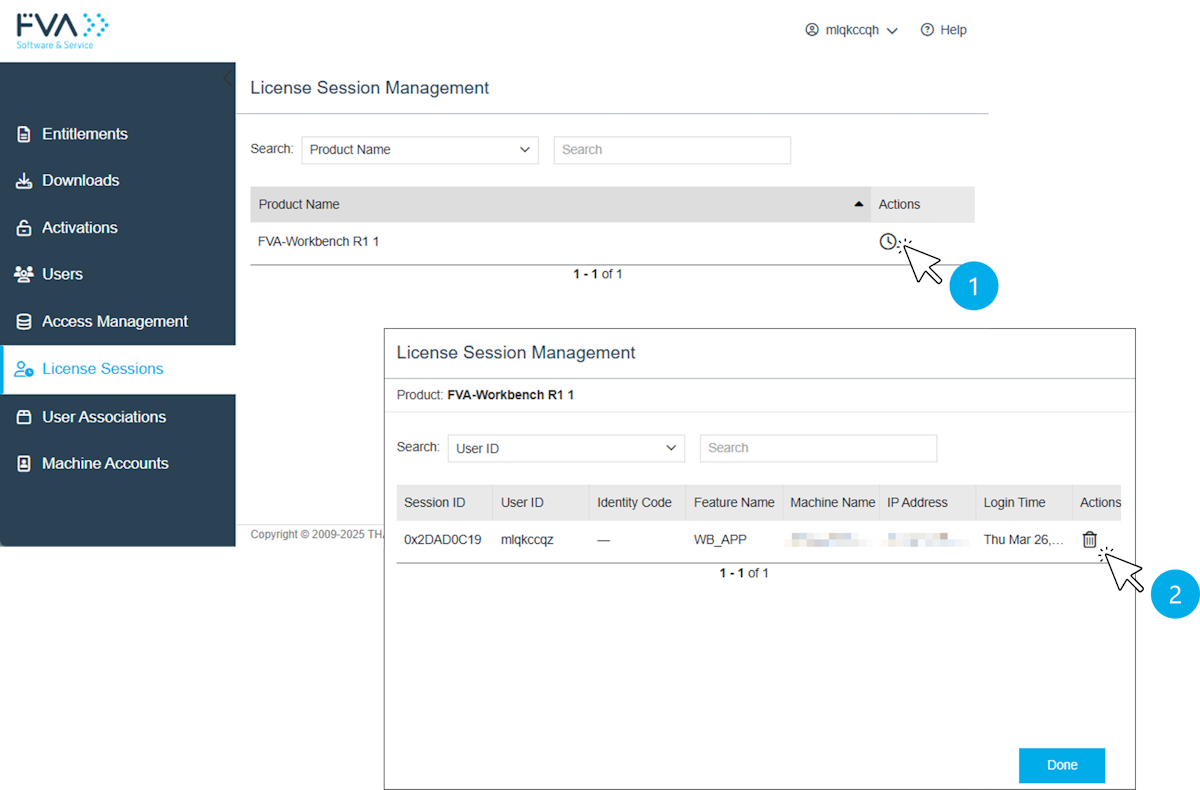
(1) Show active sessions
(2) Terminate session
Create machine accounts for cloud floating licenses
For certain use cases, logging in with a username and password is not suitable, for example:
Operation of the FVA-Workbench in batch mode
Operation of FVA-Workbench instances using the SimHub
Use of the FVA-Workbench on one computer by multiple users without individual login details
For these use cases, a machine account can be set up for a computer in Sentinel EMS. The computer is then linked to this machine account via a link and thus gains access to all available floating licenses without the need for separate login.
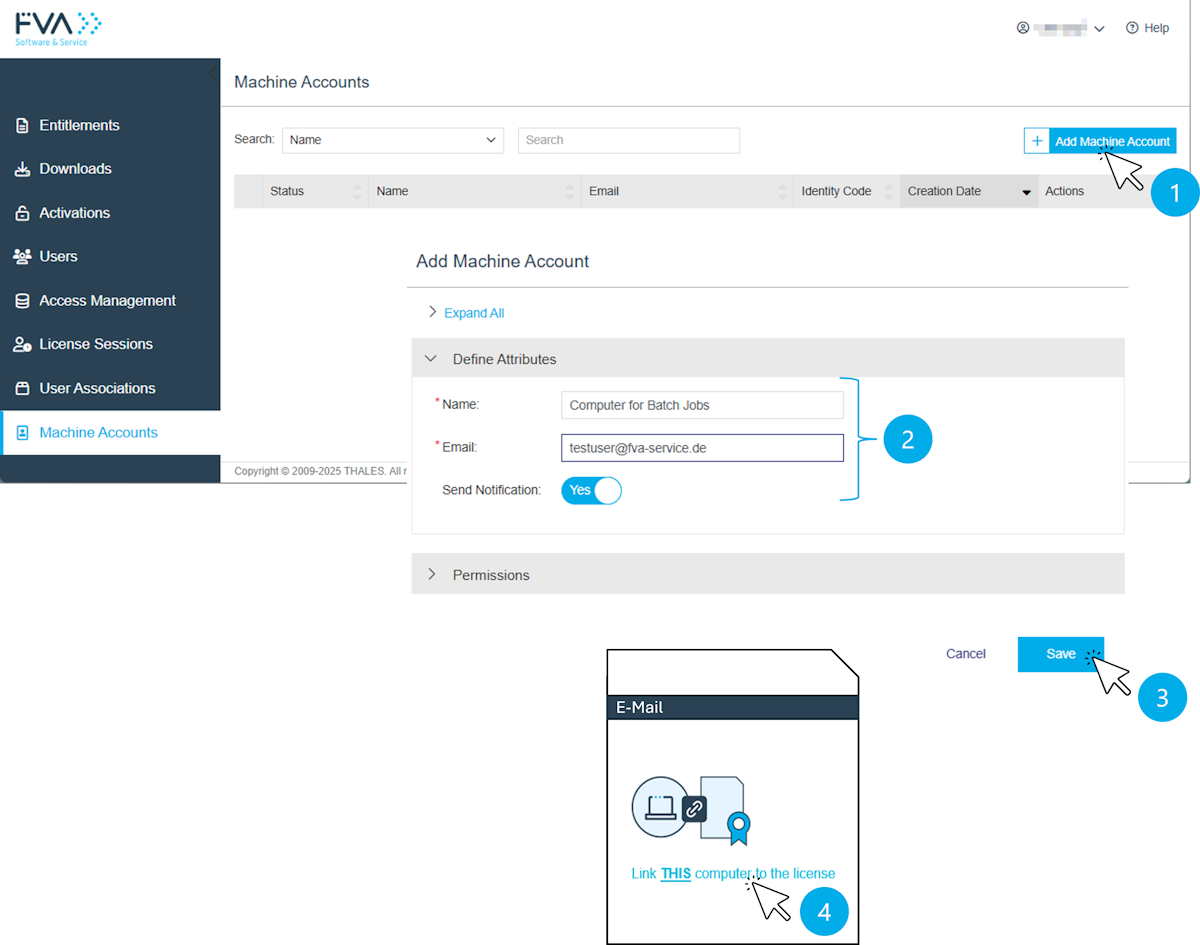
Steps for creating a machine account
(1) Create a new machine account.
(2) Name: Name of the user or computer Email: Address to which the link will be sent.
(3) Save machine account
(4) Click on the link on the computer that is to be authorized to access the licenses.
Local Floating Licenses
Important
The Sentinel License Manager must be installed on a server to use local floating licenses. This server must be accessible for all computers running the FVA-Workbench. The server checks the validity of the licenses and distributes them to the network. The Sentinel License Manager must also be installed on the client computers.
Overview of the required steps
The administrator receives an e-mail with information about the issued license and the Entitlement ID
Login to the FVA Download Center with the Entitlement ID and download the Sentinel License Manager
Install the Sentinel License Manager on a computer that is accessible on the network
Open the Admin Control Center web interface at: http://localhost:1947
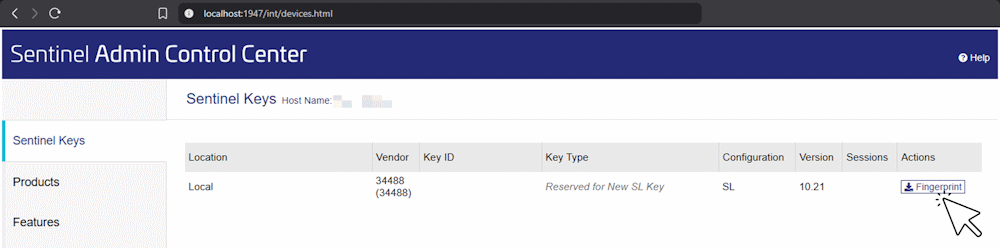
Create a fingerprint file (.c2v) in the Admin Control Center under "Sentinel Keys" and send it to lizenz@fva-service.de
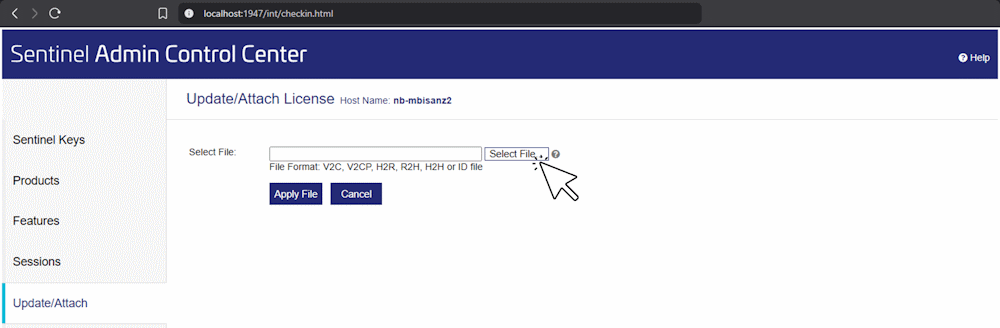
Add the update file (.v2cp) you receive in the Admin Control Center under "Update/Attach"
Restricting user access
Access to licenses can be managed at the user level in the Admin Control Center.
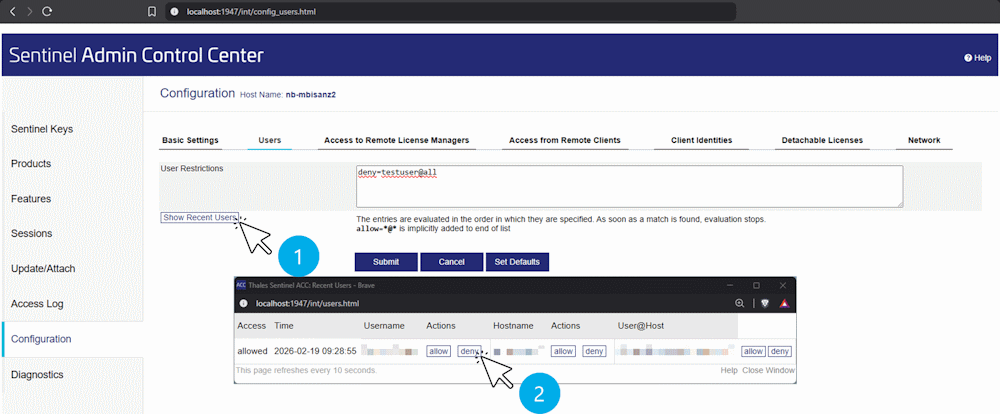
(1) Shows the users or devices which have recently used a license.
(2) Explicitly allow or deny access to users or devices.
Specify the license server address on the client computers (the computers on which FVA-Workbench is running).
As part of the FVA-Workbench installation, the Sentinel License Manager is also installed on the client computers. On the client side, it is used to receive licenses from the license server.
Notice
When using the portable version of FVA-Workbench, the Sentinel License Manager is not installed automatically. Therefore, it must be installed separately on the client computers.
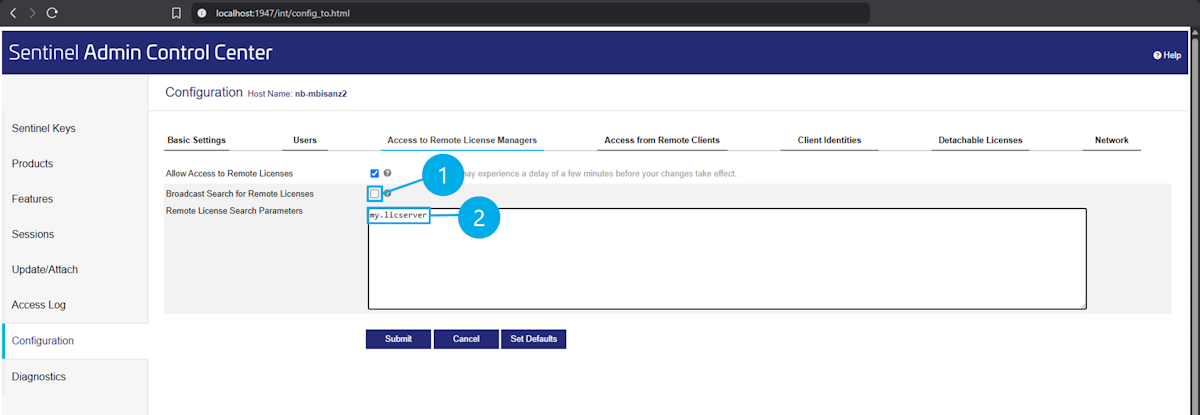
At the address http://localhost:1947/int/config_to.html The address of the license server can be specified (on client computers).
(1) Broadcast search: Deactivate the checkbox (Should only be used in smaller networks to automatically search for the license server)
(2) Remote License Search Parameters: Enter the host name of the license server
Start parameters for batch mode
Client cloud and local floating licenses
For these license types, the license ID to be used must be specified.
Example:
C:\FVA\FVA-Workbench.exe -WBJob="C:\WB_job\WB-Job.wbj" -Lic="TLic;518247552335801006"
Cloud floating licenses
For cloud floating licenses, it is recommended to create a machine account for the computer on which the batch process is to be executed. When the computer is connected via a machine account, the license is specified in the same way as for client cloud and local floating licenses.
For testing purposes, however, batch mode can also be started with authentication via email and password.
Example:
C:\FVA\FVA-Workbench.exe -WBJob="C:\WB_job\WB-Job.wbj" -Lic="TLic;632067363738713777;userMode"
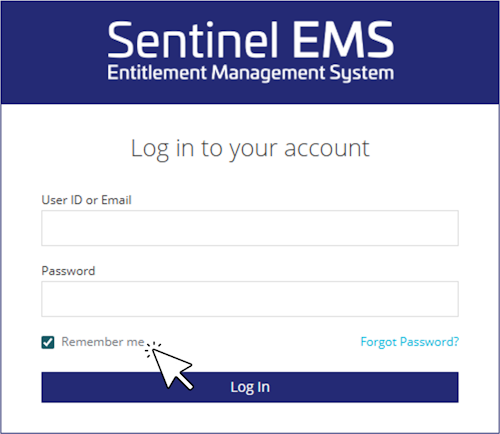
Before executing the batch job, the FVA Workbench should be started once in GUI mode. The user name and password must be entered and then the Remember me option must be activated. After that, login in batch mode will take place automatically.
Proxy server settings for cloud floating licenses
There are two .ini files in the FVA-Workbench installation directory. The address of the proxy server must be specified in these files.
hasp_auth.ini
# Authentication Runtime Configuration File
SNTL_AUTHZ_URI=https://auth-emea.prod.sentinelcloud.com/auth/realms/41630fb7-4ce2-b0a3d52b45da/protocol/openid-connect/auth
SNTL_TOKEN_URI=https://auth-emea.prod.sentinelcloud.com/auth/realms/41630fb7-4ce2-b0a3d52b45da/protocol/openid-connect/token
SNTL_LM_HOST=fvagmbh.prod.sentinelcloud.com
SNTL_CLIENT_ID=app-9a0622fc-f27a-4294
SNTL_REDIRECT_URI=http://localhost/v1/callback
SNTL_CODE_CHALLENGE_METHOD=plain
SNTL_STORE_AUTHZ=false
SNTL_SCOPE=openid
SNTL_LOG_LEVEL=Debug
SNTL_BROWSER_MODE=external
SNTL_EMBEDDED_BROWSER_TITLE=FVA-Workbench
#SNTL_AUTH_PROXY=http://my.proxy.de:8080
#SNTL_AUTH_PROXY_PWD=<user>:<password>
SNTL_AUTH_PROXY: Address and port of the proxy server
SNTL_AUTH_PROXY_PWD: If the proxy server requires login details, these can be entered here.
A preceding hash symbol (#) comments out the respective line.
hasp_34488.ini
proxy = 1
proxy_host = my.proxy.de
proxy_port = 8080
proxy_username = <username>
proxy_password = <password>
Proxy server settings for cloud client licenses
If your organization uses a proxy server for outbound connections, it must be configured in the Admin Control Center (ACC). The corresponding setting can be found at: http://localhost:1947/int/config_network.html
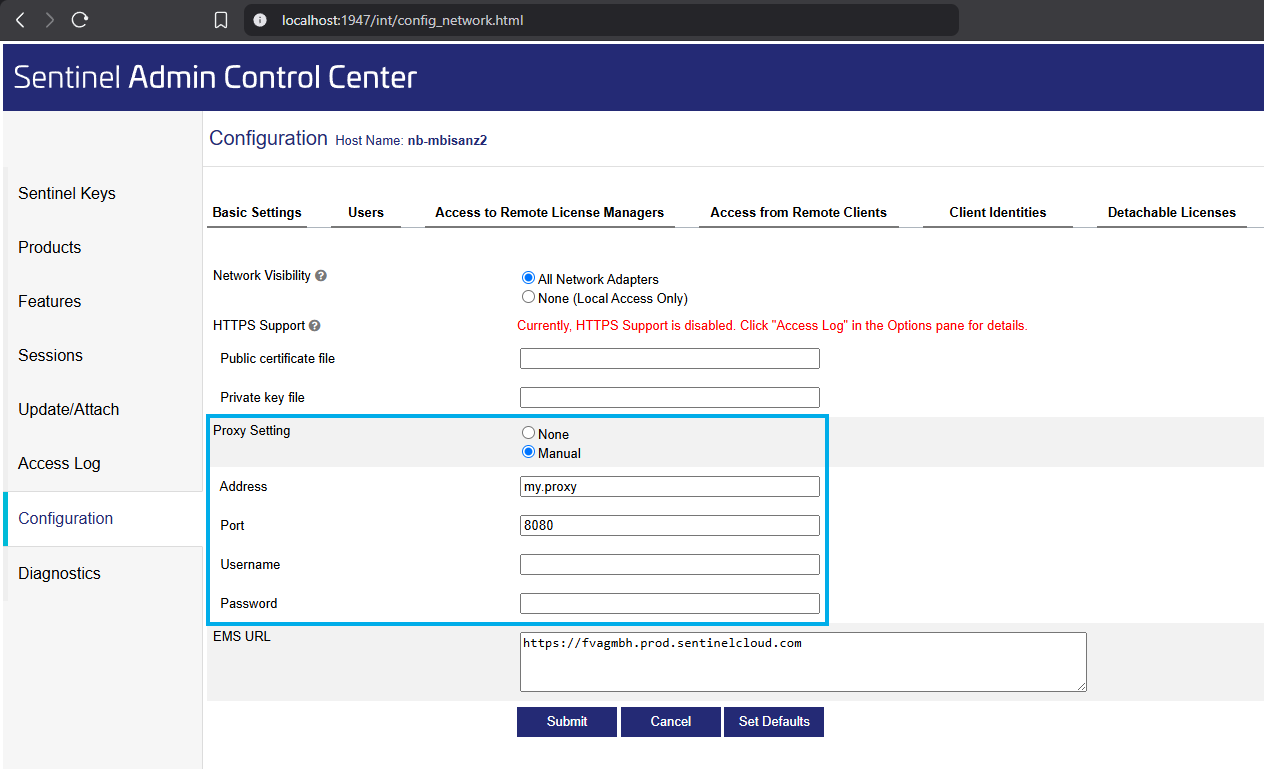
In ACC, you can specify that outgoing connections are routed through a proxy server.
Troubleshooting
Notice
If a proxy server is used in the corporate network, it must be configured accordingly so that licenses can be accessed.
Log Files
Sentinel License Manager connection log | This log shows the communication and connection events of the local Sentinel License Manager. It helps analyze whether the application can reach the license service, whether license requests are being processed, and whether connection issues exist with local or network licenses. | |
Sentinel License Manager error log |
| This directory contains error and diagnostic information from the Sentinel LDK components. The files may provide indications of issues with the license service, the local Sentinel installation, drivers, permissions, or license files. |
Authentication log for user-based licenses |
| This log file contains information about the authentication of user-based licenses. It is relevant if user login, license assignment, or permission validation fails. |
FVA-Workbench error log |
| General FVA-Workbench error log. |
Cloud licenses are not displayed or the connection is unstable
Some corporate networks use proxy servers with packet inspection. This involves analyzing and partially modifying network traffic. This can result in timestamps or certificates deviating from the license manager's expectations. One possible consequence is unstable connections to the license service.
Another possible reason is the use of DNS filters in the corporate network. When the URL fvagmbh.prod.sentinelcloud.com cannot be resolved to an IP address, the licenses cannot be retrieved either.
Check whether the address to the license service can be resolved
Open Command Prompt
Type the following command:
nslookup fvagmbh.prod.sentinelcloud.com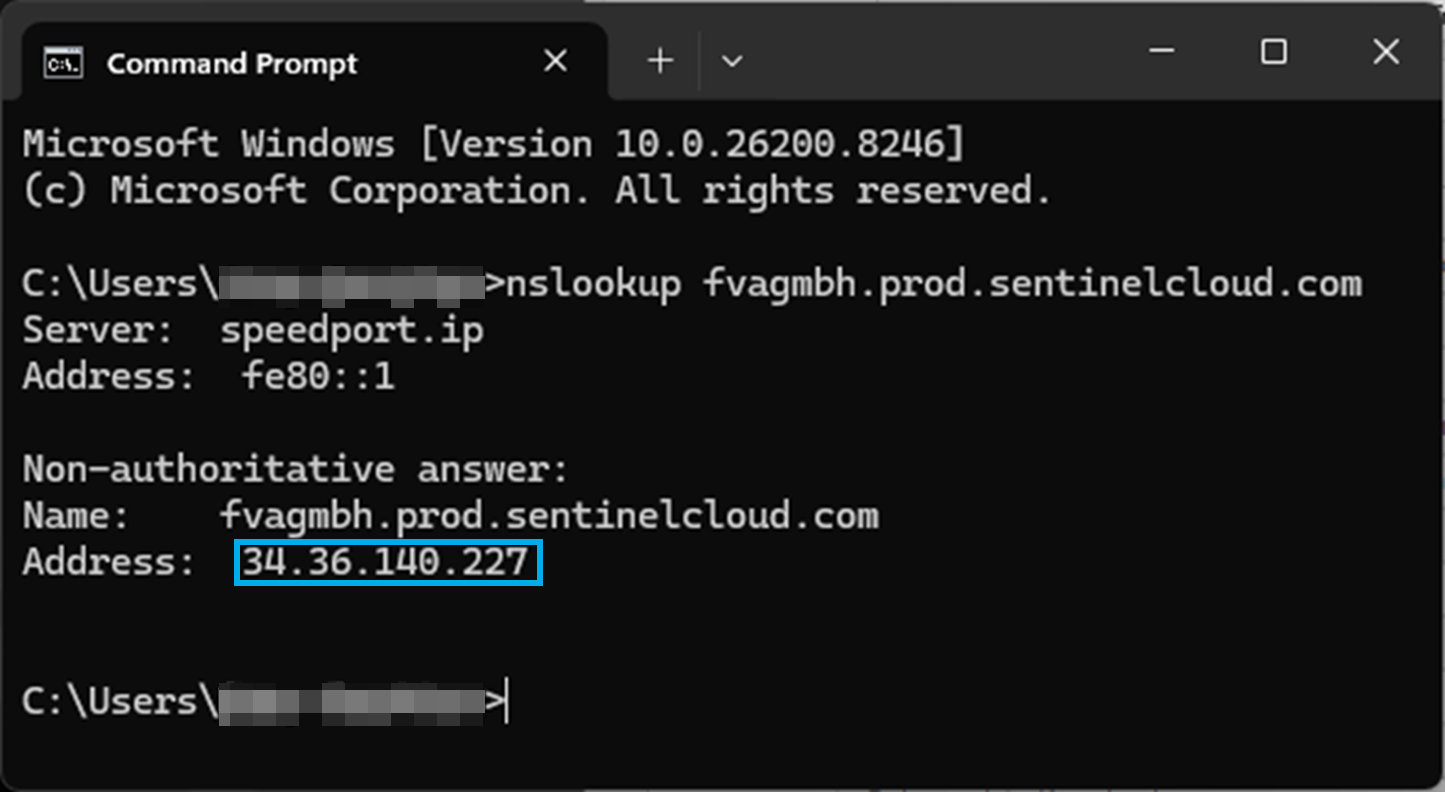
If the DNS lookup works correctly, the resolved address is shown here.
If no IP address could be resolved, please check with your IT department whether a corresponding DNS entry can be created or whether the correct name resolution for fvagmbh.prod.sentinelcloud.com can otherwise be ensured within your corporate network.
Possible solution
Go to the following page in your browser: https://fvagmbh.prod.sentinelcloud.com/customer/login (No login required)
Then open the certificate display (1) on the page. Depending on the browser, the way to get there may differ slightly.
Under “Issued by” (2), “Sentigo Public Server” must be entered as the exhibitor. If another issuer is specified there, the connection is highly likely to be broken by a security component in the company network and re-signed with an internal certificate. This could be caused by a proxy, firewall, or secure web gateway, for example.
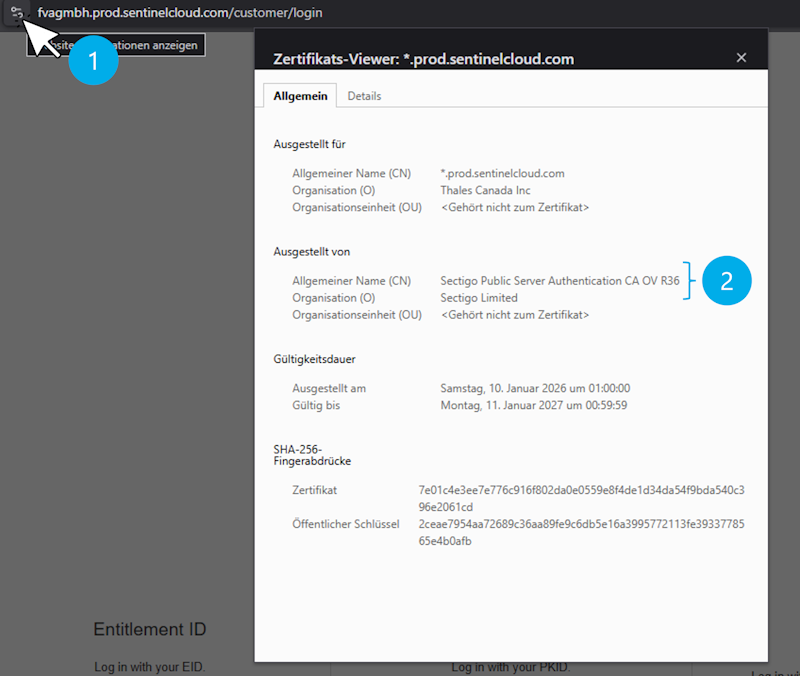
(1) View certificate
(2) Certificate issuer (must be “Sentigo Public Server”)
Please check with your IT department to see if your company uses such a proxy server. If this is the case, the following URL should be added to the whitelist in the proxy or firewall: *.sentinelcloud.com
Logging in with email and password fails
If the login to EMS with email address and password fails with the error message “Failed to retrieve access token,” a proxy server in the corporate network is the cause in many cases. The configuration is here described.
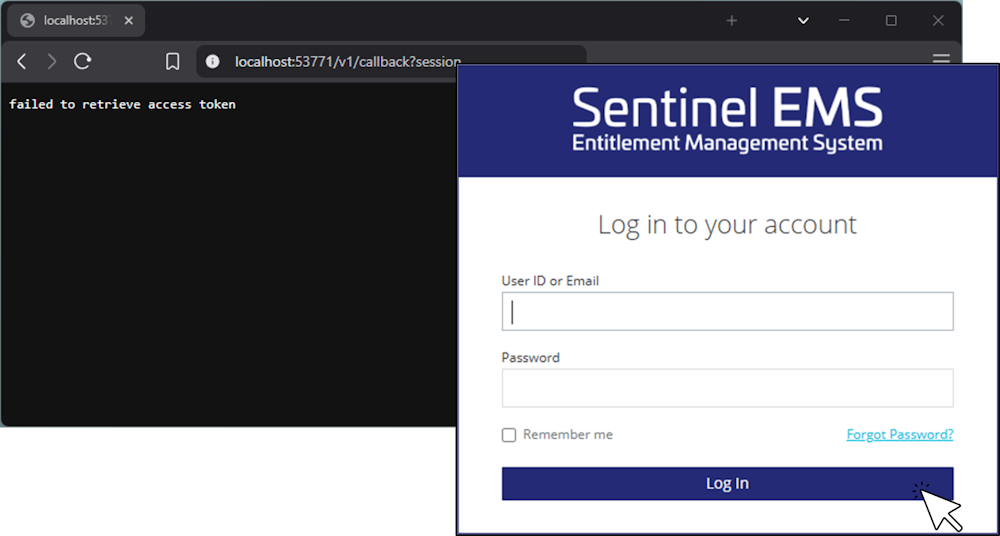
Failed login to EMS with the message “Failed to retrieve access token” after entering the email address and password.